Data with Bert logo

Self-Hosting a Photo Server the Whole Family Can Use

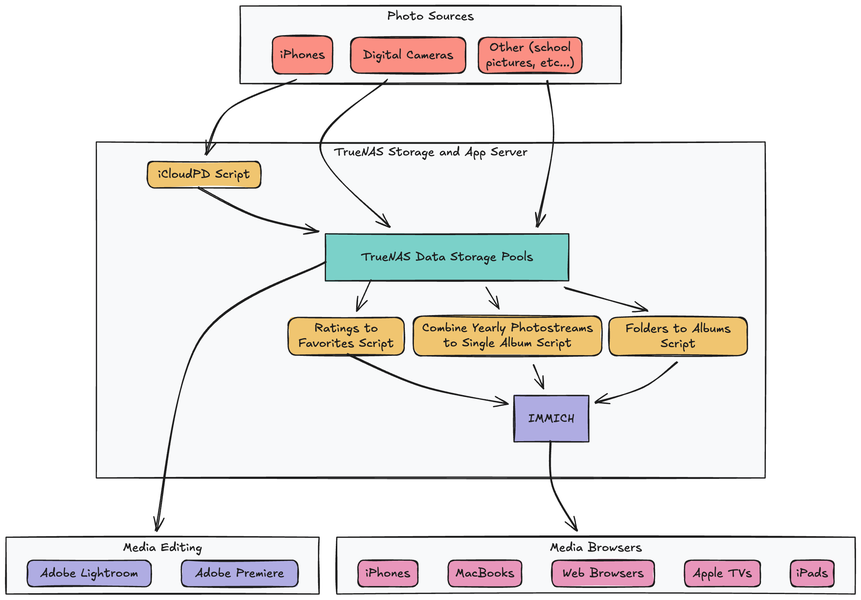
Photo Workflow Diagram

Until recently, my family's 90,000+ photos have been hidden away in the depths of my gaming PC's hard drives. Many of the more recent photos were also scattered across our individual iCloud accounts, making them hard to find and access.

A failing backup drive on my PC (thanks S.M.A.R.T.) motivated me to rethink my photo and video storage solution. I needed something that backed up all my family's photos (including those from our phones) and made it possible for everyone, including my kids, to easily access them.

The rest of this post walks through my process of converting my gaming PC to a Network Attached Storage (NAS) server, and the series of software and scripts I use to make my photos easy to access by anyone in my family.

Storage Goals
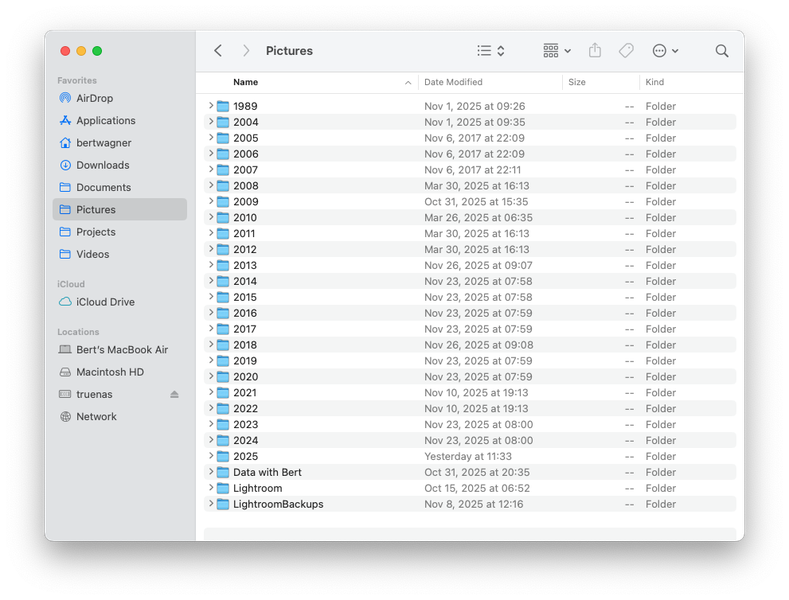
Picture folder organization screenshot The final result of the backed-up and easy to access NAS.

Before diving into the details of how everything is set up, here is what I wanted my new storage solution to achieve:

1. Singular location

I want all my media available in one central place. One "Pictures" folder that has everything. If I want to find a photo, I want to be able to do it within seconds by navigating an organized folder tree structure.

2. File control and ownership

I want complete control over managing the files on disk. I use several pieces of software (more below) that help manage albums, photo edits, metadata, etc... but at the end of the day I want my photos to exist as files on disk and not in some proprietary format or database that is challenging to migrate away from in the future.

3. Ease of use

For the last 8 years, I was the only person in my household who could easily access our photos on my gaming PC. My wife and kids knew I was backing up their photos, but they didn't know where everything was actually stored. This new solution had to be totally accessible and usable by anyone in the family. I want my family to be able to access photos by person, vacation, on a map, or other photo identifying features all from their own devices.

4. Support all devices

Most of our photos nowadays are taken by our phone cameras, except for special events and trips when we use dedicated digital cameras. I want all of these photos, regardless of the device they were taken on, to be searchable and viewable.

5. Backups

All backed up, all the time, without me having to think about it.

6. Lightroom and Premiere

I mainly use Adobe Lightroom for editing my photos. I want to be able to use Lightroom from my MacBook Air, have it run efficiently, and have it access my terabytes of photo data. I also want to be able to edit video projects in Adobe Premiere without storing the video files on my laptop's internal SSD.

The solution outlined in the next sections achieves all these goals.

NAS
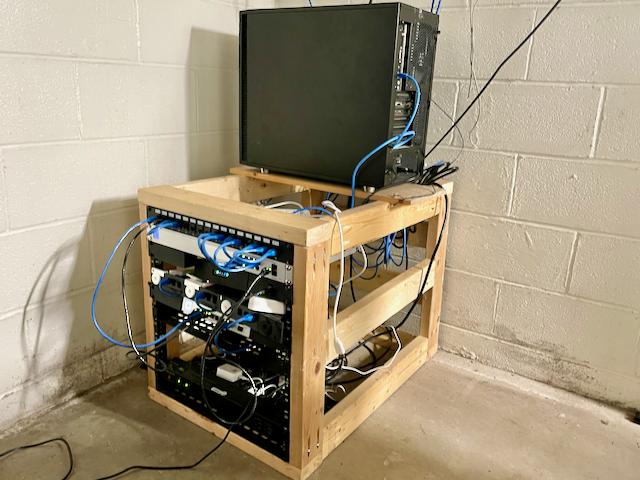
A very DIY server rack My server rack and cabling isn't winning any awards. But it is functional and made for nearly no cost from many reused parts. The new NAS server, the former gaming PC, sits on top.

The core solution to achieve all the above goals is a NAS server. There are many NAS hardware devices you can buy pre-built, but I decided to reuse as much as I could from my old gaming PC.

I was able to reuse: - 4-core Intel i7-7700K - 32gb of RAM - GeForce GTX 1050 Ti GPU (while underpowered by today's standards of modern gaming and LLM AI, it still works great for the machine learning face recognition I'll be running on it) - .5TB SSD for the NAS operating system - 2TB SSD for Docker apps

The hard drives in the gaming PC were old and starting to fail, so I added four new 4TB hard drives to create the main storage pool.

For the software/operating system, I decided on TrueNAS. I also considered Unraid. I honestly didn't spend a lot of time deciding - it seems like both projects are well maintained. I liked the feel of TrueNAS better, it's performance claims, and it's longer history with ZFS filesystem and snapshots, which led to the decision.

I won't get into the details of configuring TrueNAS here, but I followed this video from Hardware Haven and found it thorough, clear, and easy to follow.

Snapshots and Backups

Once I had my NAS server set up, it took a few ~~days~~ weeks to get all of my data moved. Why that long? I was copying from NTFS drives through Mac (over USB 3.0) over the network to the ZFS drives on the NAS server. I saw there were some faster NTFS drivers on Mac available, but I thought "surely this won't take that long" - well, it did.

The NAS is configured with four 4TB drives in RAID-Z2. This gives me about 7TB of usable storage space, which is roughly four times more than I previously had available. I chose ZFS as the filesystem primarily because of its protections against silent data corruption.

Screenshot of TrueNAS available storage Look at all that beautiful available capacity.

I'm a believer in the 3-2-1 backup strategy (three copies, two media/devices, one offsite) and that's what I implemented for my server.

My original copy of my data exists on the NAS. While RAID-Z2 does offer some backup protection (two disks can fail and I still don't lose any data), that is mainly a resiliency feature and I don't count it as a true backup, though it is a nice bonus.

I also keep a copy of the data on an 8TB external hard drive. I walk down to the server rack in my basement once per month, plug the external drive in, and backup all the data to it. Once complete, I disconnect the external drive and store it unplugged upstairs in my office. This protects my data from basement flooding, electrical frying, or malware takeovers (with potentially a loss of one month of data since I only sync it once per month).

Finally, I keep another copy synced to the cloud with Backblaze B2. I've used Backblaze's personal product for years, and switching to B2 was a breeze. I highly recommend it, and at the time of writing, it costs about $10/month to backup 2TB of data on the B2 tier(affiliate link if you would like to try it out. For fun, I sync to a B2 region far from where I live so in the (unlikely) event of a regional catastrophe, my data still exists somewhere far away. My offsite cloud backup runs nightly.

NOTE: If you use Backblaze B2, make sure you enable --fast-list to keep your bill lower (the Backblaze docs say it...but I missed it initially).

In addition to the nightly backups, I run snapshots every hour, day, and month:
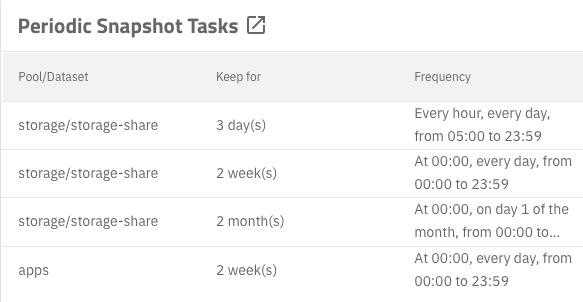
Periodic snapshots TrueNAS makes it easy to set up snapshots on any schedule you want.

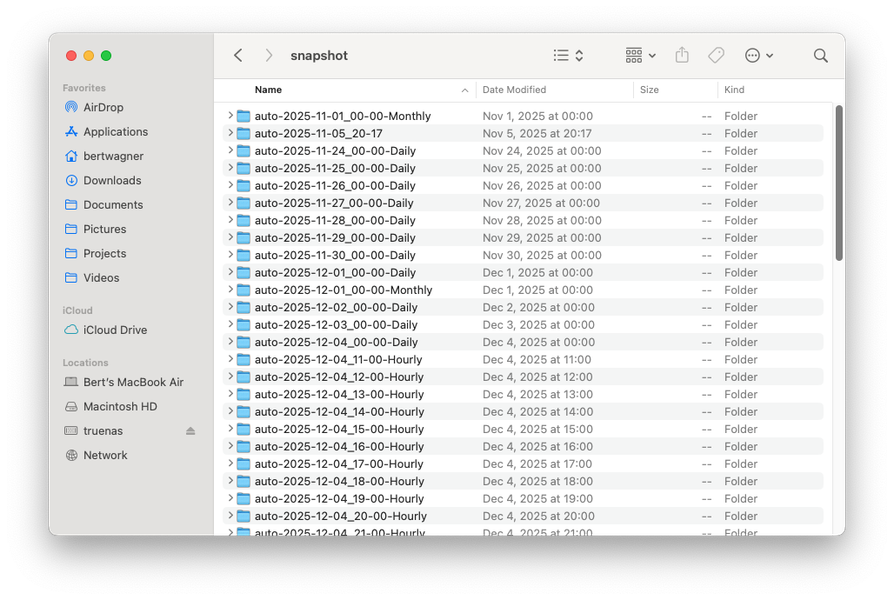
These are kept for a certain amount of time, allowing me to recover recently deleted files easily. The snapshot files are stored by date in a hidden .zfs/snapshot folder, making it very easy to find an accidentally deleted file: Snapshots on disk
Organization and Photo Software

Here is the high-level workflow I have automated for backing up and using all of my family's photos: Photo Workflow Diagram

On Disk

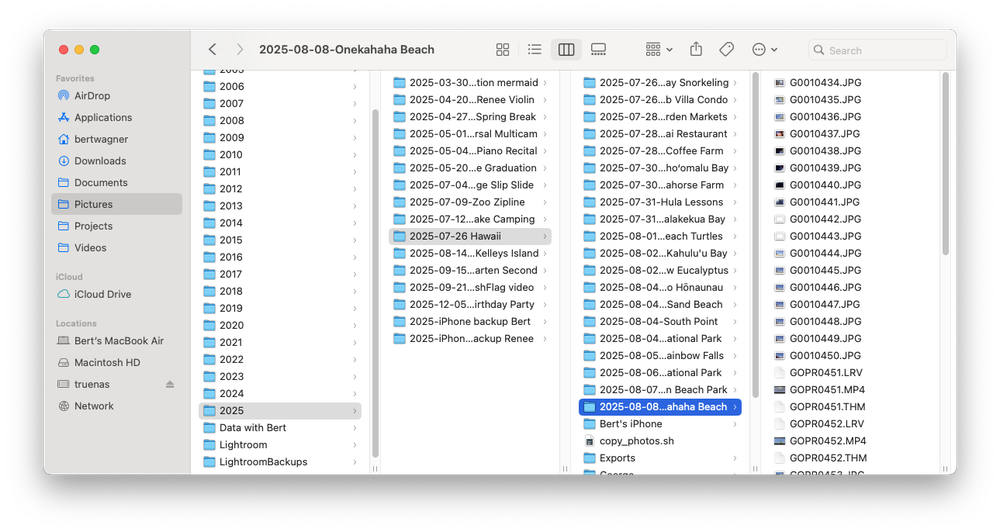
I store all my photos by date: Screenshot of tree hierarchy I have a folder for the year, and then a folder with YYYY-MM-DD KEYWORDS DESCRIPTION to make it easy to find photos. This system allows me to find any photo I need in about 30 seconds. Professional photographer Scott Kelby argues you should organize by subject, and while I follow a lot of his Lightroom workflow process as outlined in that video, for me it makes more sense for the source files to be organized by date.
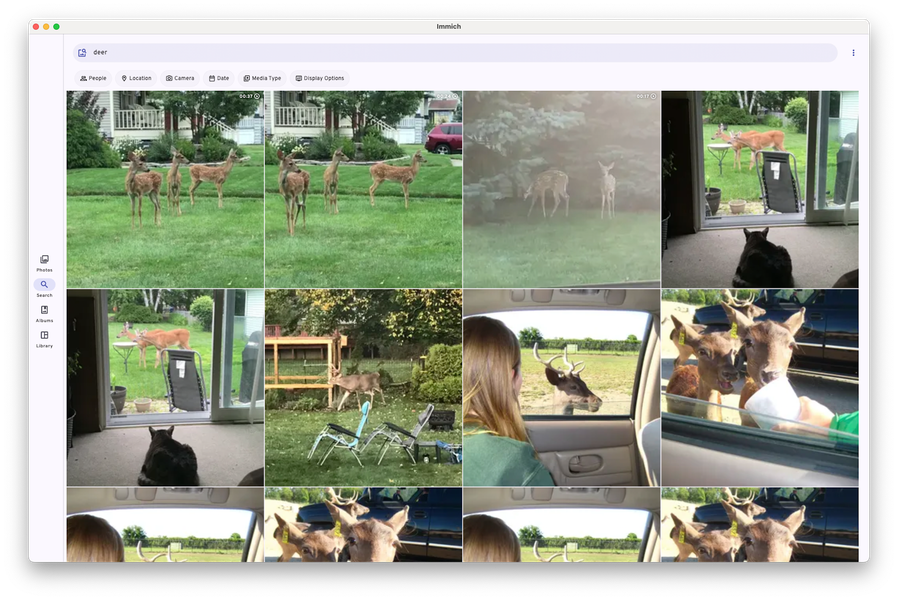
With today's machine learning object recognition tools, and the fact that all my cameras capture GPS coordinates of photos, I can easily search my catalogs by person or place too, so finding the media I need is easier than ever before: IMMICH search for "deer" Searching across all albums for "deer" in IMMICH, detailed further below.
iCloud

What about photos that I take with my phone? For me, I like storing one folder per year, eg. 2025/2025-iPhone backup Bert that has a copy of all my year's iPhone photos.

How do I get my photos in there? I have a script that utilizes the icloud photos downloader CLI tool to download my photos from iCloud:

#!/bin/sh

# Read in credential variables
source /icloudpdconfig/.env

# icloudpd options: 
# --cookie-directory Persist login cookies to a mounted volume 
# --xmp-sidecar Download XMP sidecar files (includes iPhone "Favorite" ratings) 
# --smtp-* Email server for notifications 
# --directory Where to save the downloaded photos 
# --keep-icloud-recent-days Delete iCloud files older than 6 months

icloudpd \
    --cookie-directory /icloudpdconfig/cookies \
    --xmp-sidecar \
    --smtp-host $EMAIL_HOST \
    --smtp-port $EMAIL_PORT \
    --smtp-username $SMTP_USERNAME \
    --smtp-password $SMTP_PASSWORD \
    --username $ICLOUD_EMAIL \
    --password $ICLOUD_PASSWORD \
    --directory /Pictures/ \
    --folder-structure "{:%Y/%Y-iPhone backup Bert}"
    --keep-icloud-recent-days 180

I have this script run hourly and copy my photos from iCloud to my NAS. It also deletes photos older than 6 months old, freeing up space to fit within the 5GB iCloud free tier. I found a free option for still accessing all my phone photos which I outline further below.

In addition to copying the photos from iCloud, it also copies down the meta information into XMP side car files (including photos I've tagged as Favorites on my phone) which will be important later on.

Lightroom
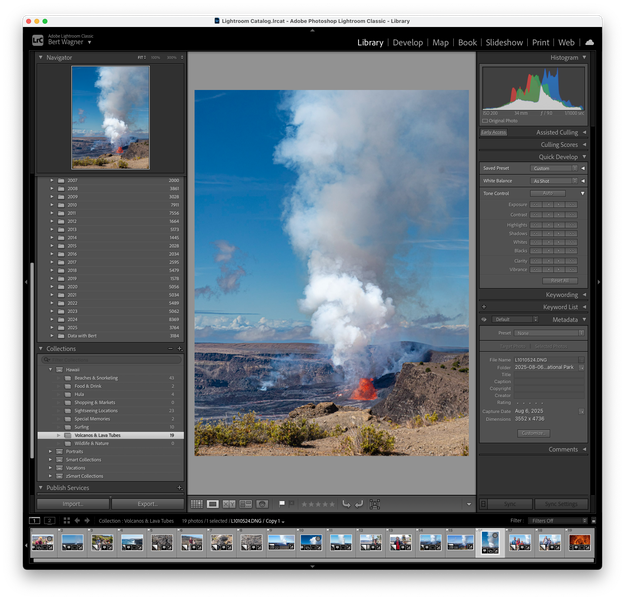
Screenshot of Lightroom I use Adobe Lightroom for all of my image editing (and Adobe Premiere for my video editing). As part of this transition to a NAS server, I wanted to ensure my media editing would still be fast and accessible from my primary editing device, a MacBook Air.

In short, it works great. For Lightroom, I keep my Catalog (Lightroom's database of edits and metadata) on my MacBook Air. I then point it to my NAS hosted photos and editing works seamlessly.

I was worried that moving my whole catalog would be hard, but it was as easy as repointing Lightroom to the NAS location, and everything worked.

Although the Lightroom Catalog is stored locally to provide fast performance for editing, I still backup the Catalog to the NAS in case my MacBook Air SSD ever fails.

IMMICH

With storage and editing of photos solved, what about accessing those photos easily from any of my devices?

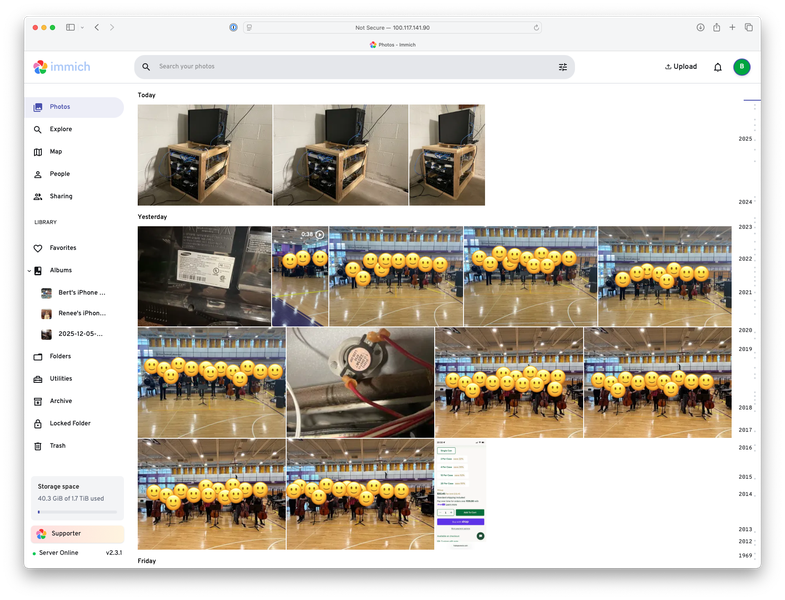
This is where IMMICH, the open-source photo and video browser steps in. Screenshot of IMMICH Although IMMICH has many features, I mainly use it as a self-hosted photo and video browser. Since I have all of my media stored on my NAS (including my photos from iCloud), I configured IMMICH to read my NAS mount as an external library, and now all my photos and videos are easily viewed within the app.
While IMMICH is able to load all my photos from the NAS, I do run a couple extra scripts that make IMMICH even more powerful than the default.

First, I run immich-folder-album-creator to convert all the folders on disk into Albums in IMMICH:

docker run \
  -e API_URL=$API_URL \
  -e API_KEY=$API_KEY \
  -v "/mnt/storage/storage-share/Pictures:/mnt/media/Pictures:ro" \
  -e ROOT_PATH="/mnt/media/Pictures" \
  -e ALBUM_LEVELS="2" \
  -e IGNORE="iPhone backup Bert" \
  -e PATH_FILTER="**/20*/*" \
  -e ALBUM_NAME_POST_REGEX1="'^\d{4} ' ''" \
  -e UNATTENDED="1"  \
  salvoxia/immich-folder-album-creator:latest

This allows me to navigate photos in IMMICH exactly how I do on my computer. This is especially useful when I'm on my phone and need to find a photo from years ago. Even though IMMICH maintains its album information in its proprietary database, this doesn't bother me since it is scripted out and easily recreated. Screenshot of IMMICH albums Two albums for our iPhone photostreams, plus the rest of our NAS photo albums organized by date.
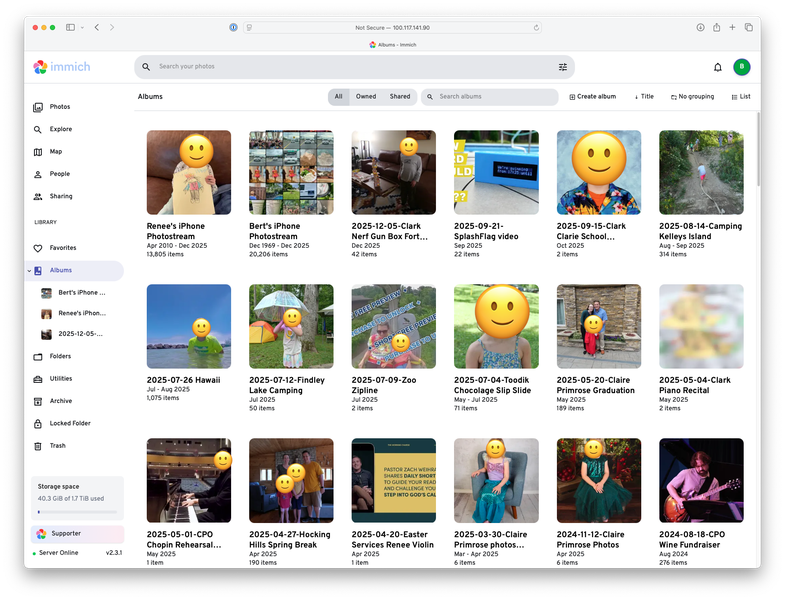
I also have this script that combines all of my yearly iPhone backup albums into a single iPhone photostream album:

docker run \
  -e API_URL=$API_URL \
  -e API_KEY=$API_KEY \
  -v "/mnt/storage/storage-share/Pictures:/mnt/media/Pictures:ro" \
  -e ROOT_PATH="/mnt/media/Pictures" \
  -e ALBUM_LEVELS="2" \
  -e PATH_FILTER="*/*-iPhone backup Bert/*" \
  -e ALBUM_NAME_POST_REGEX1="'\d{4} \d{4}-iPhone backup Bert' 'Bert'\''s iPhone Photostream'" \
  -e FIND_ASSETS_IN_ALBUMS="1" \
  -e UNATTENDED="1" \
  salvoxia/immich-folder-album-creator:latest

I run this once for my iPhone albums, and once for my wife's. This gives us an album that mimics iCloud's photostream, containing all photos I've ever taken with my phone in chronological order, within IMMICH. This is what allowed me to cancel my iCloud storage subscription.

Finally, the last step I do is sync the meta data for which photos I favorited in iCloud into IMMICH. iCloud Photo Downloader does download the "Favorite" metadata with the --xmp-sidecar argument. It saves it in the Rating property with a value of 5.

While IMMICH does allow reading in the Rating meta data from the XMP sidecar file, it does not treat it as a "Favorite". Favorites are only designated in the IMMICH database and not in any file or sidecar meta data (at least at the time of this writing).

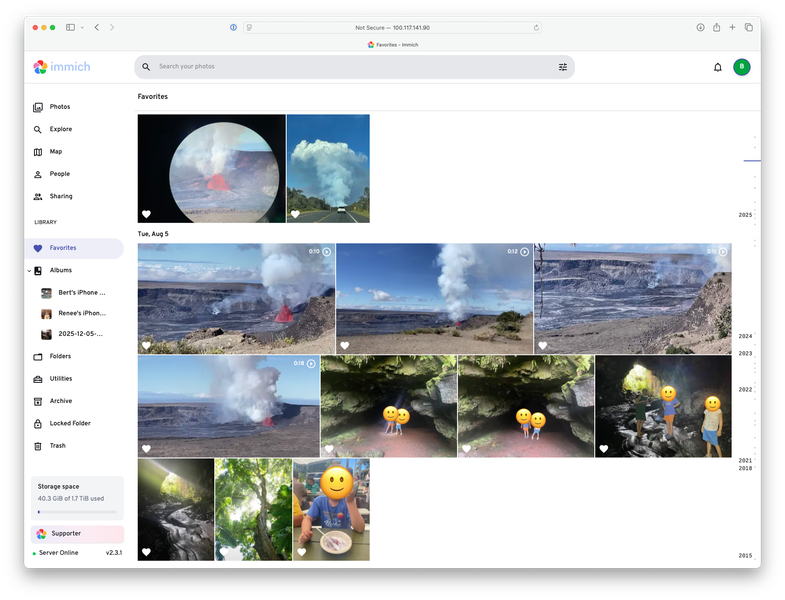
I vibe coded the this python script to go through and finds all the photos that are Rated 5s and marks them as favorites in IMMICH. It works great, allowing me to easily filter on "Favorites" within IMMICH: IMMICH Favorites
Accessing Photos

I want to be able to access photos from any device, whether I'm home or not. The solution I chose was setting up Tailscale on all my devices. Tailscale is a VPN that allows me to access my home network seamlessly from any device.

This means after installing Tailscale on my wife's and my phones, our laptops, and our Apple TV (where the kids primarily view our family photos), I was all set. I just load IMMICH's URL in the browser and view my photos from anywhere:

|IMICH ON my phone I can now find any image I want at any time from my phone.
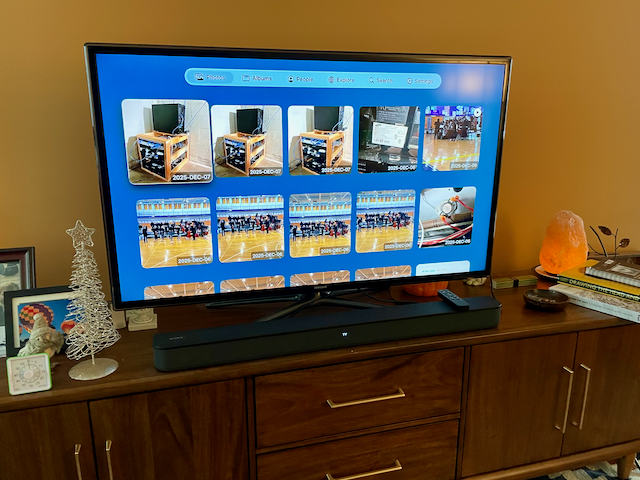
IMMICH on my TV Photo archive available on the Apple TV. Great for sharing photos of trips with family, and easy enough for my kids to use and look through photos.

Conclusion

Final Thoughts

I'm really pleased with how this process turned out.

I now have a server that stores all of my media, has it backed up multiple ways, is resilient, prevents accidental file deletions, and best of all (at least to my family) allows for photos to be accessible from any of our devices.

Additionally, I no longer need to pay for iCloud photo storage, and my kids finally have a way to look at our family photos without needing to ask us.

Future Improvements

While I like the system I've pieced together, there is still room for improvement. For starters, I'd like to figure out a way to share albums outside of my Tailscale network without compromising privacy or security.

I also didn't set up user accounts with any of this, but I could see that as something that will become important as my kids get older and have their own devices to manage. I'll have to figure out how to have them manage their own media while protecting them from accidentally deleting everything on the server. TrueNAS and IMMICH both have lots of options for user creation and permissions, so this will be something I explore down the road.

Bonus Apps

While not photo related, having a home server is nice for the other apps you can install and run. Here are a few of the ones that I've enjoyed running so far in addition to the photo ones related above:

  • SplashFlag: Backend for my neighborly pool notification IoT device.
  • Pi Hole - A network wide ad blocker. I previously had this running on a Raspberry Pi, but now it makes sense to have it running on the NAS server.
  • FreshRSS - I've been hitting feed limits on all my hosted RSS server free accounts, but finally I have my own self-hosted RSS server. I use NetNewsWire to read from my FreshRSS instance from my laptop and phone.
  • ChangeDetection.io - Create RSS feeds to monitor changes to websites. Great for websites that don't host RSS feeds, or when I want to check for when a product comes back in stock.
  • Actual Budget - Personal finance app.
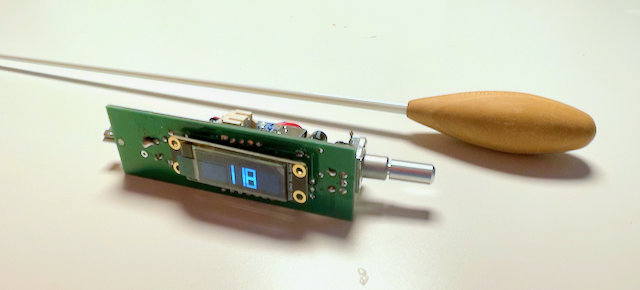
SplashFlag - Building an IoT Swimming Notification Device from Scratch

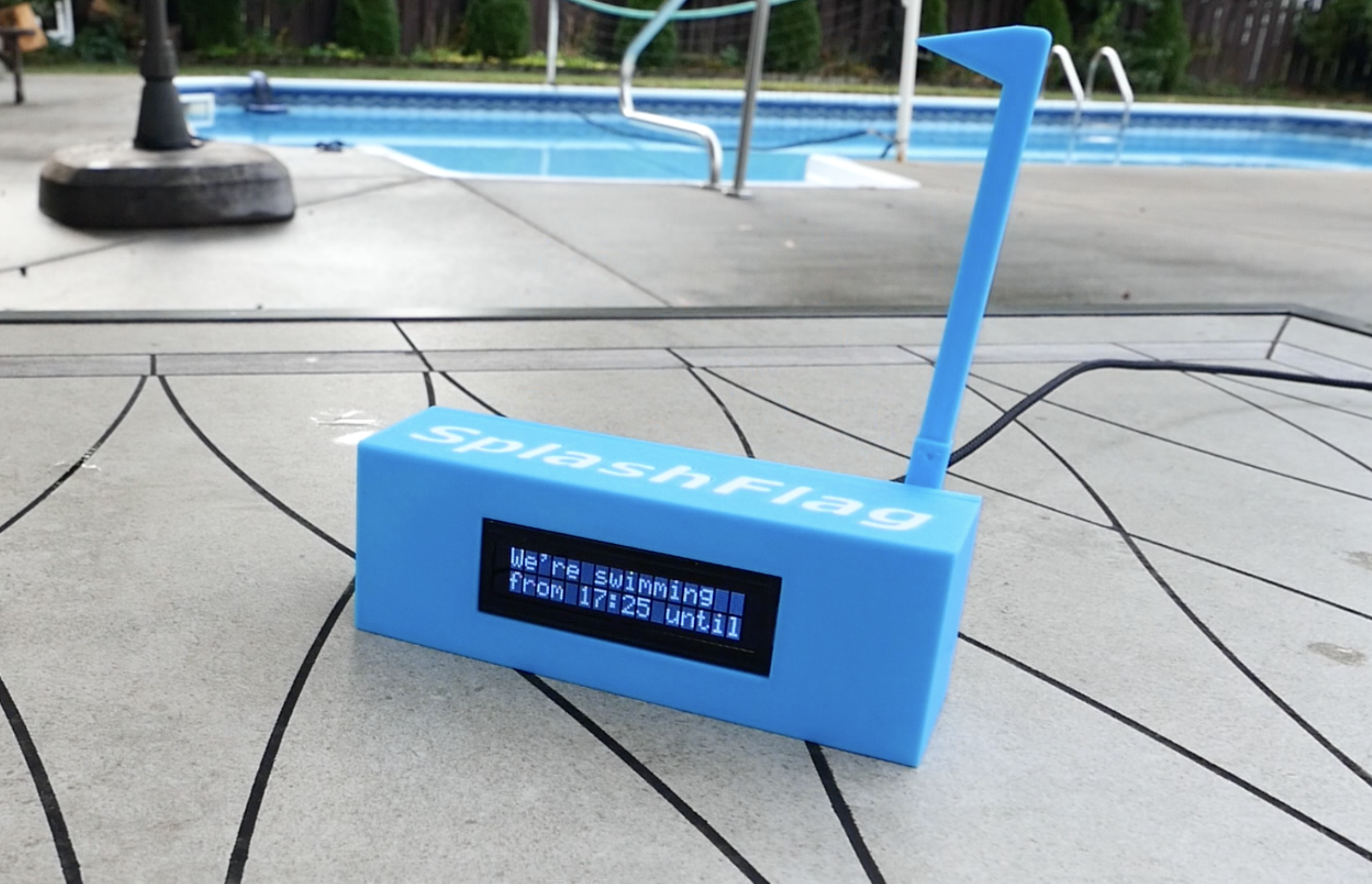
The SplashFlag Notification Device

After setting up dozens of Internet of Things (IoT) smart home devices, I started to wonder: how hard could it be to build one from scratch?

I needed a project to learn on, so I decided to create something fun: a device that alerts my neighbors when my kids go swimming, extending the invitation for their kids to come swim too.

What follows are the lessons I learned from building such an IoT device from scratch.

Demo and Code

Here's a short video demoing the device and its features:

Watch this video on YouTube

The instructions and code for building your own Splashflag can be found at the bottom of this post, otherwise keep reading to learn about my journey in building the device.

Why SplashFlag?

How many times can you play Marco Polo in a pool with an adult and two kids? I know that my kids far prefer the company of their friends who have a lot more energy.

Originally our idea was to put up a special "we're swimming" flag outside in our front yard when our kids were in the pool, alerting the neighbors that they are welcome to come over and swim as well. The flag would be an open invitation, without the overhead of planning, group texts, and phone calls.

I quickly realized this idea wouldn't work because: 1) The flag wouldn't be easily visible from every neighbor's house 2) By the time people saw the flag and came over, we might already be wrapping up our swimming session

What I needed to solve this social problem was technology (or rather, I needed an excuse for a new technology hobby project), which is how the idea for SplashFlag was born.

Key Features and Learnings

This wasn't my first time building an embedded device, but it was the first time I tried to follow at least some semblance of best practices: main loops less than a thousand lines long, no hardcoded passwords, etc...

If this was going to be a true learning project, I wanted to be more organized: use classes, design hardware and software that could handle errors gracefully, and create a way for users to connect the device to their WiFi without me ever needing to know their credentials.

While I wouldn't consider this code to be perfect (or even necessarily "good"), it's a huge improvement over hardware projects I've built in the past, so I consider it a success.

Below is an overview of the major features I built into the device.

Servo Flag

The servo and plastic flag

This is how the idea started: instead of the physical flag in my front yard, it would be a small plastic flag sitting on the counter in a friend's home.

Whenever the device receives a message, the flag goes up until the message expires. Besides being a fun feature, it works well in households where the kids are still too young to read the details of the message - regardless of what the screen says, if the flag is raised, they know the Wagners are swimming and they're welcome to come swim too.

Clear/Reset Button

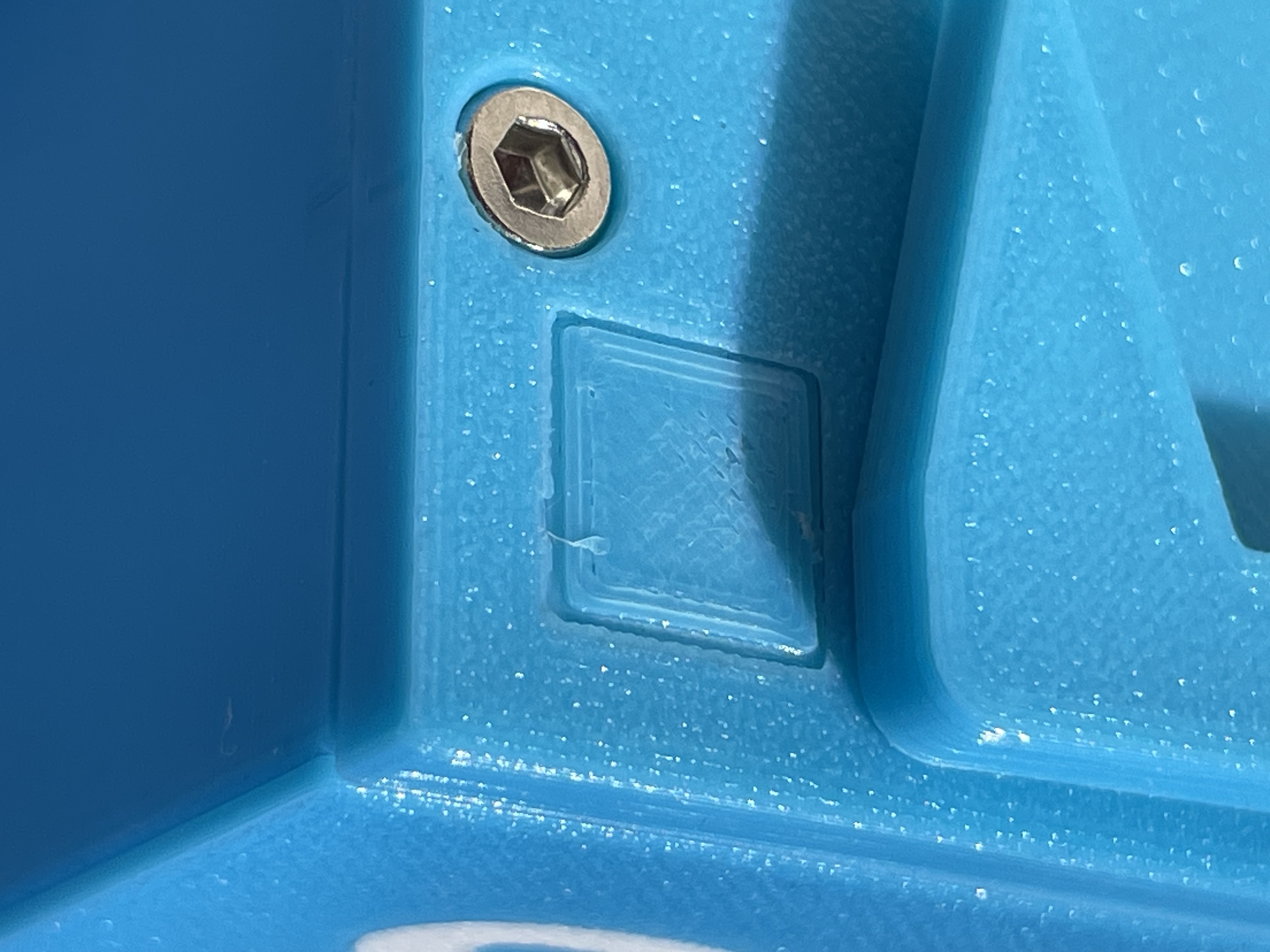
Reset Button

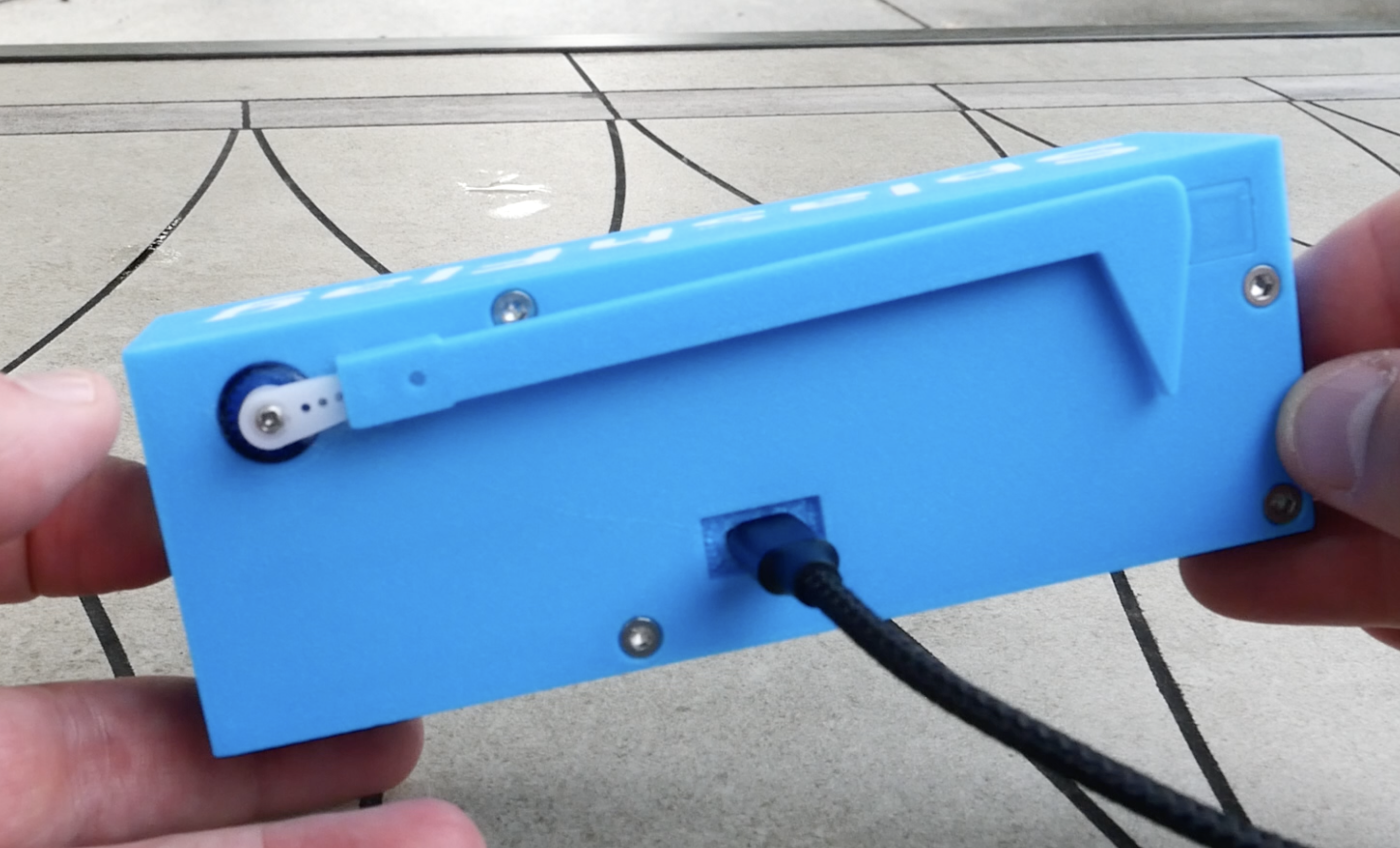
This button wasn't originally planned as a feature. The first time I got the servo flag working and realized it might be raised for an hour, I knew that as a parent I'd want a way to clear the notification without my kid seeing it. So the hidden button on the back of the device became a necessary enhancement. Push it, and the message clears while the flag goes down.

It also serves double duty for triggering a factory reset.

LCD

In addition to the servo flag, the LCD displays messages about swimming. The default message indicates how long we plan to swim, but the web app (see below) lets me write any message, so something like "feel free to stay for pizza" is a potential customization.

The LCD also displays system messages, like when the device is having trouble connecting to WiFi or when the messaging server is down.

The code for the LCD was fun to write: since the screen can only fit two rows of 16 characters, I had to write a function that could split any length message so it fit these constraints and scroll across multiple screens.

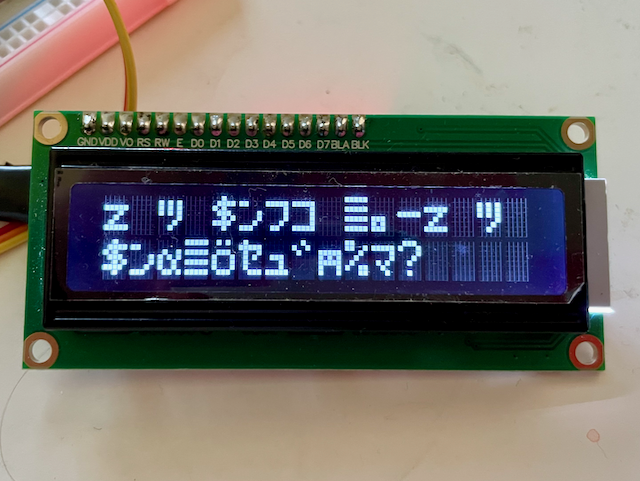
This is also where I first encountered overflow errors and needed to add max-length validations: Memory overflows displaying garbled characters on the LCD screen

The screen works well and serves its purpose, but along with the I2C adapter, it is easily the biggest component in the device. Next time, I plan to look for slimmer options, because the device size (especially the front frame with the LCD) could have been considerably smaller if I had chosen a different board.

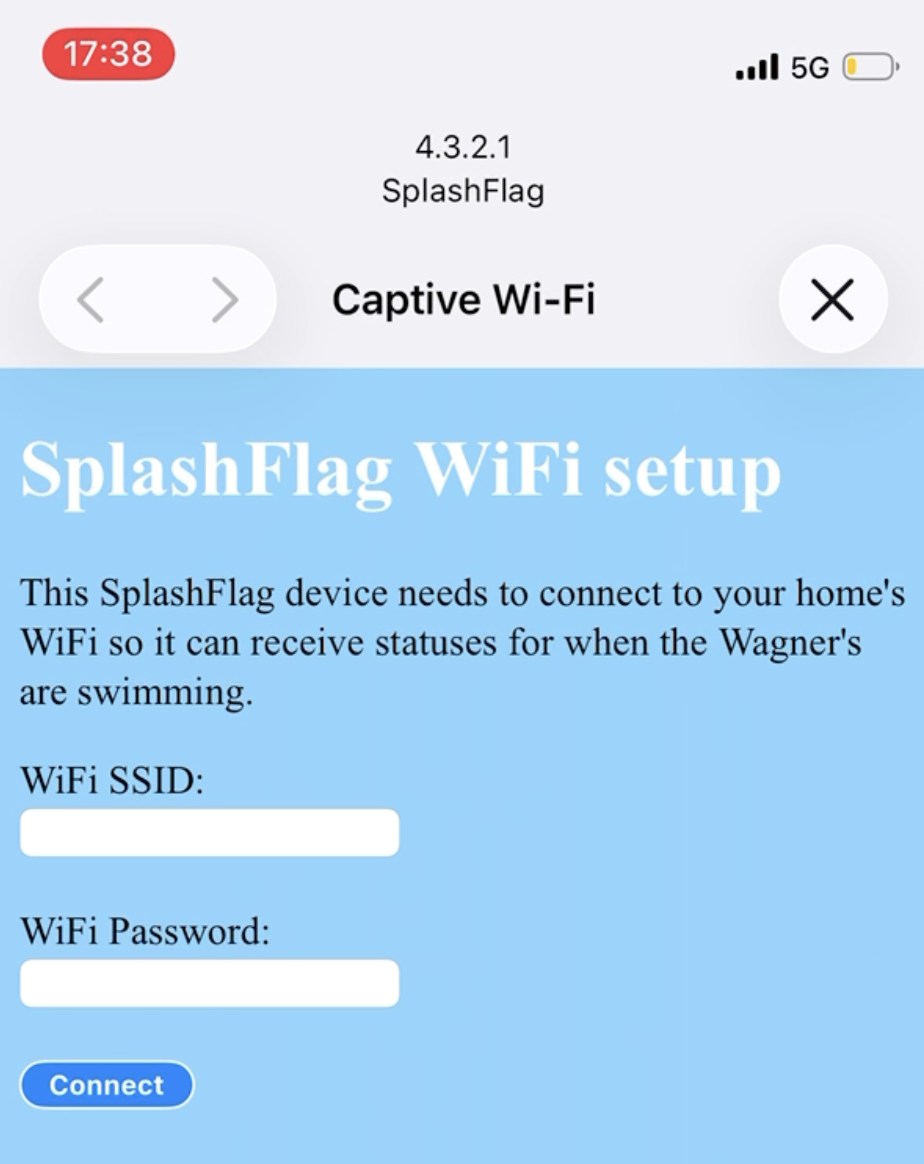
Captive Portal

Screenshot of the Captive Portal

Before this project, I never knew the magic that allowed login pages to pop up on your device when connecting to a guest wifi network.

It turns out, it's DNS!

This guest wifi login experience is what I wanted to build into my device. After all, I wanted my neighbors to be able to set this up in their house, all on their own, without me needing to know or hardcode any WiFi passwords.

The short explanation of how this works is that when your phone connects to a new WiFi network, the phone will try to visit certain well-known URLs. If you own the WiFi network, you can configure DNS to look for those standard URLs and intercept them, serving your own login page.

Fortunately there are some good libraries for setting up a DNS server on ESP32s and intercepting traffic, then serving your own captive portal where people can input their WiFi credentials.

Over the Air (OTA) Updates

Another feature I wanted to include was the ability to update the firmware remotely. Debugging and flashing new firmware while the device was sitting on my desk was easy, but I know my code isn't perfect so I wanted a way to update these devices remotely in the future.

Fortunately the ESP32-S3 Nano device I was using allows for OTA firmware updates. I set up the library for this and have it check the GitHub releases page for SplashFlag every day to see if a new version is available. If a new version exists, it will download the update and install it.

Here's hoping I don't accidentally brick anyones SplashFlag device.

Web App

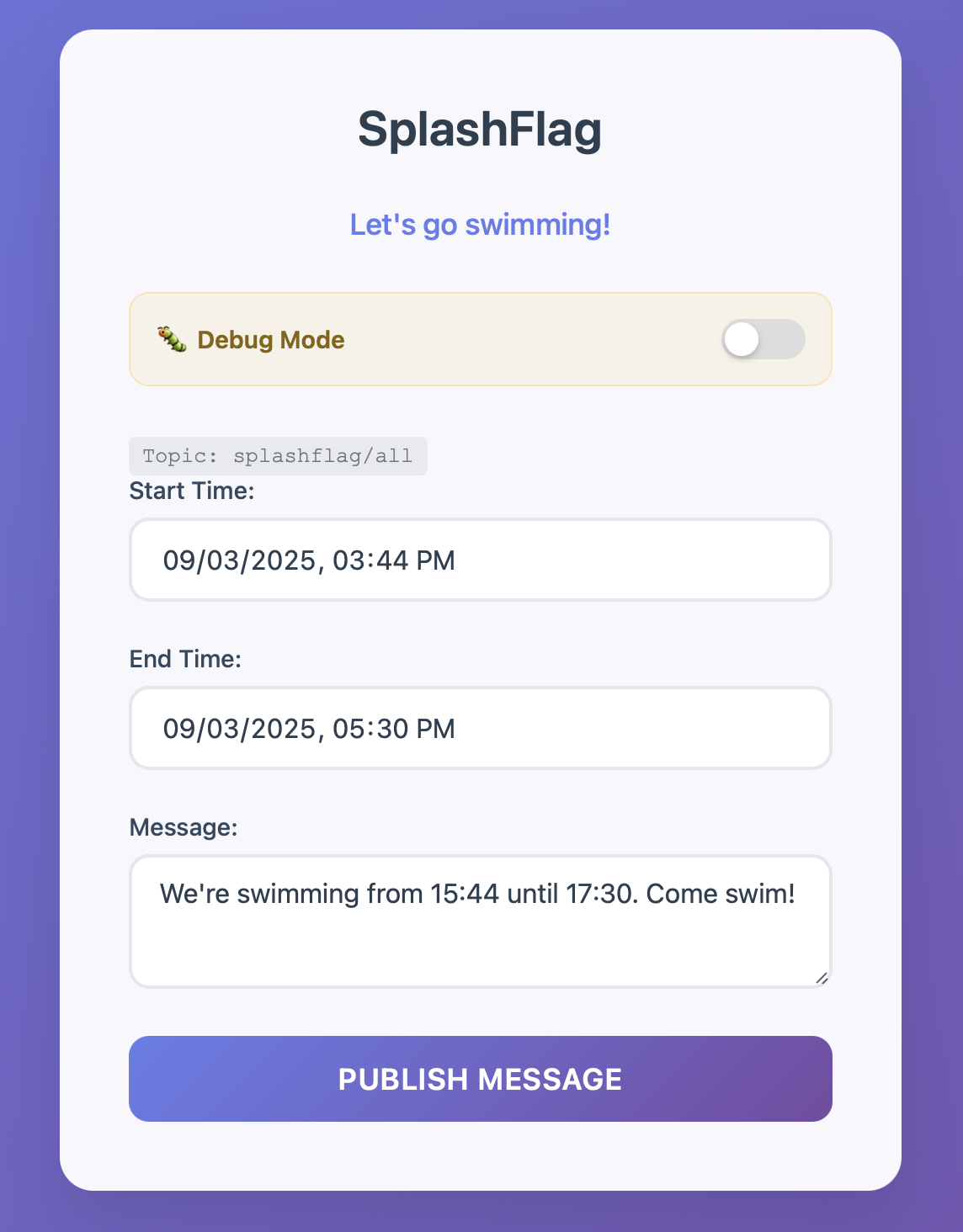
SplashFlag web app

I wanted a simple interface for sending messages to all devices, so I created a single page web application. It defaults to the most common message I would send, with input parameters to adjust the duration of how long the message is displayed on the devices.

The website runs on my home server and I expose it through CloudFlare Tunnels so I can easily access it from my phone (or anywhere). I also added HTTP Basic Authentication to the website - not the most robust option, but good enough for this project. In the future, if I upgrade anything, it would be the authentication system. Basic Authentication is secure enough, but it doesn't play nicely with 1Password or Safari on iOS, which causes some minor annoyances.

The web app sends a message to the MQTT broker (see below) over WebSockets, which then publishes it to all devices. Because this is just a simple API call, I could easily program a smart button to trigger this in the future, allowing my kids to send the notification themselves when we head out to the pool.

MQTT Messaging

I didn't want my devices long-polling a web server to check the status of new swim messages. Instead I decided to use an MQTT broker running in my home lab to transmit messages to the SplashFlag devices running the MQTT client code.

I am using mosquitto as the MQTT broker. The MQTT broker service runs on my home server and is exposed via WebSockets to the web app. All of the devices subscribe to the broker service, so whenever a message is published, every device receives the message and updates its screen and raises its flag.

Debugging Hardware Flag

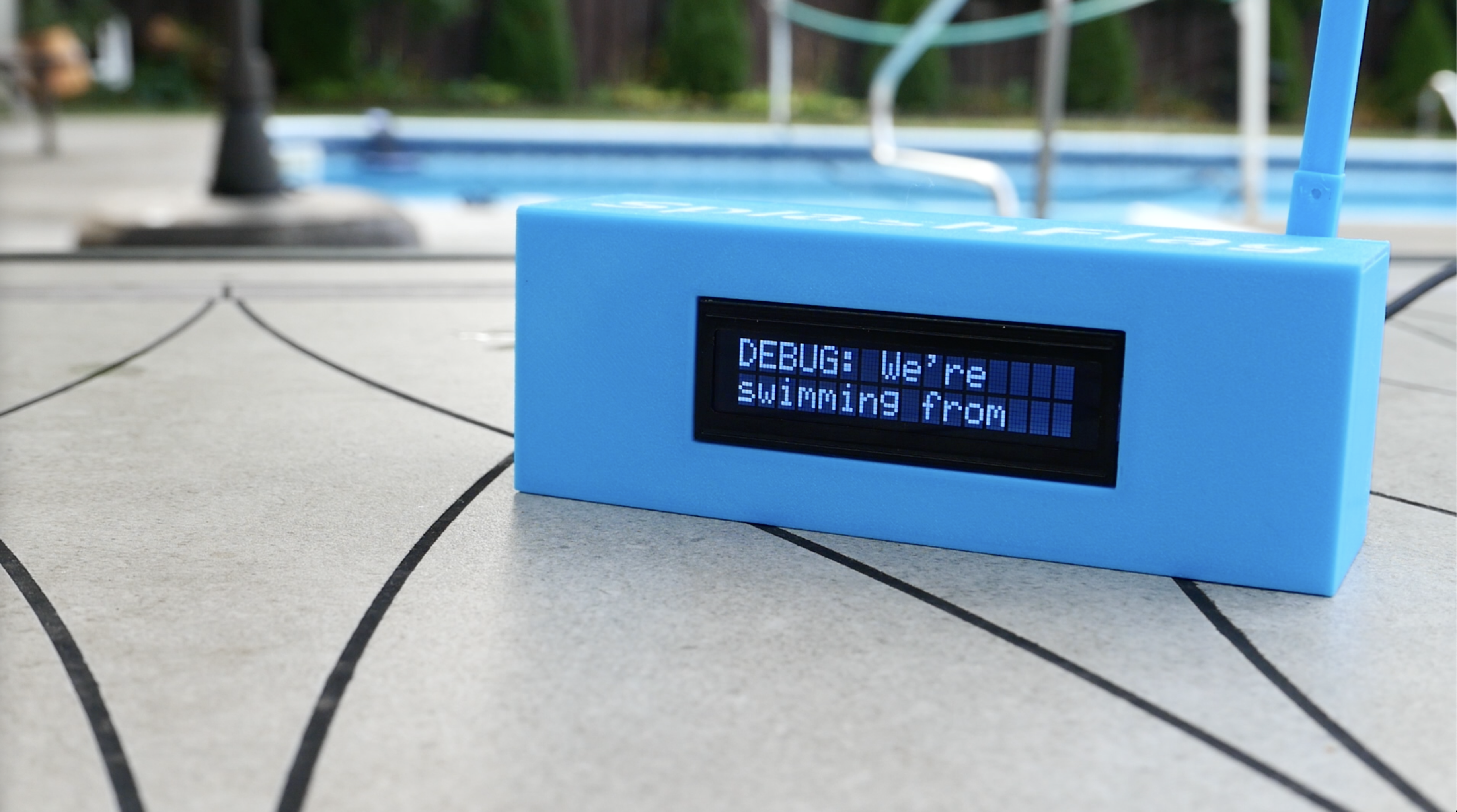
Since I may need to continue development (e.g. fixing bugs) once these devices are in the wild, I wanted a way to send messages to only my debugging device. Fortunately, ESP32-S3 Nanos have a unique mac address identifier, so I wrote code to check whether a device is a development unit under my control. If it is, it subscribes to an additional MQTT topic that only receives debugging messages. Debugging messages are set through the web app via a toggle: Debug mode toggle

Debug mode message displayed on the device

The fact that the ESP32-S3 Nanos have their own unique identifier means I don't need different code for production devices versus debugging devices (or at least in that section of the code). While I could have handled this in other ways, I'm satisfied with how this solution works.

3D Printed Case

While I learned a ton designing this case, the smartest thing I did was test print each CAD feature as I finished designing it. This meant printing something like the servo holder only took 15 minutes, and then I could dry fit the parts together to ensure they actually fit. This saved a lot of time on iterating fit and printing, as well as minimizing plastic waste. SplashFlag device

My CAD design experience before SplashFlag was limited to simple enclosures. SplashFlag taught me how to make more complex designs, including screw mounts and snap-fit parts.

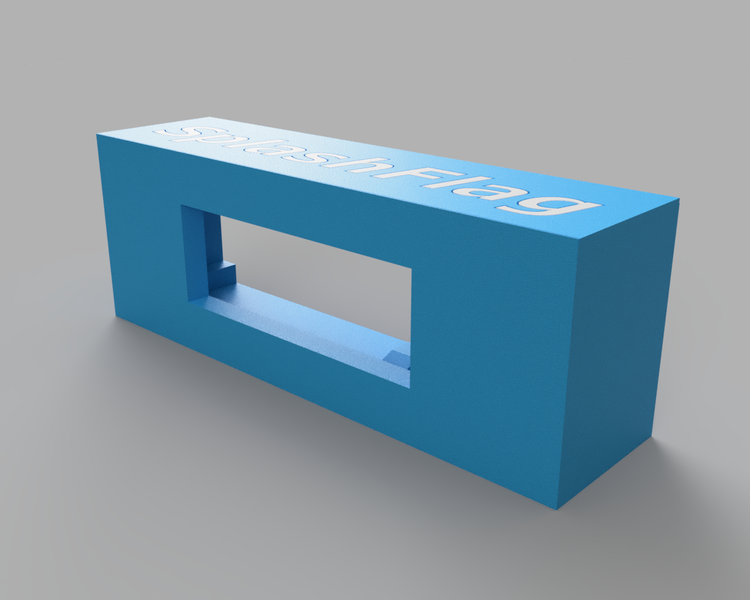
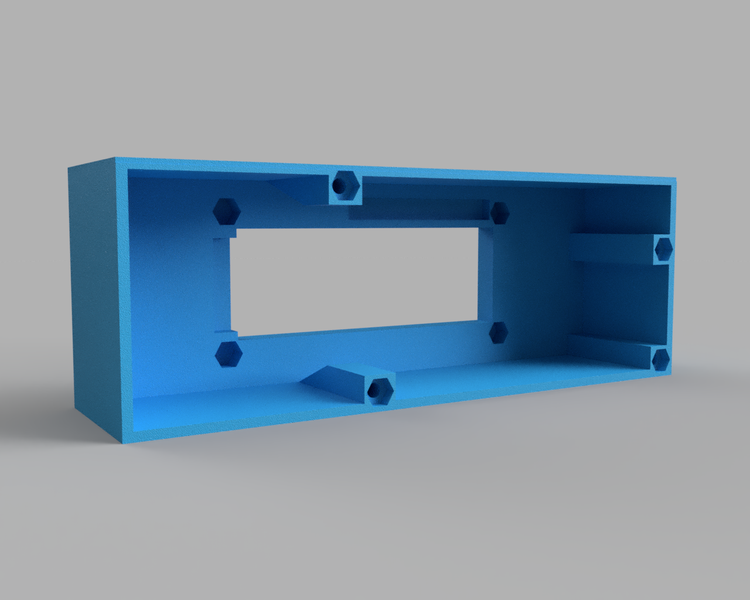
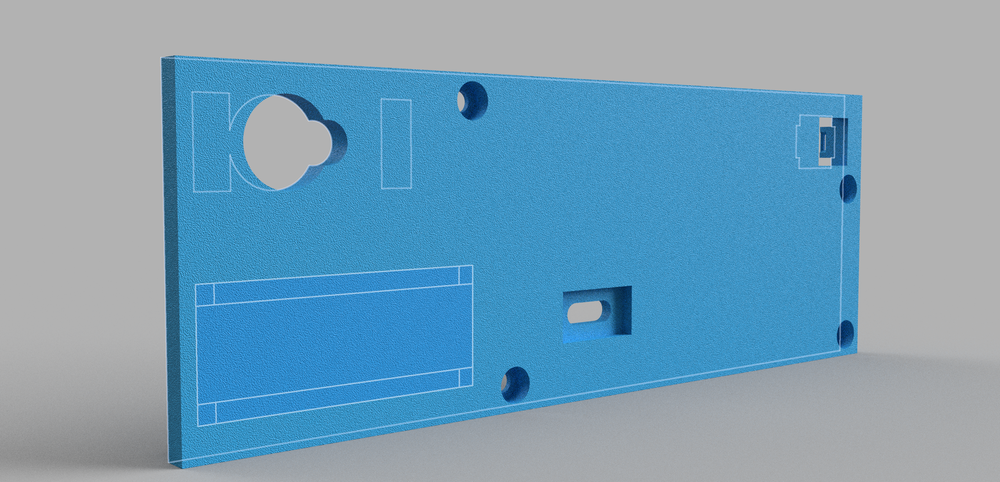
The case design is simple. The front panel holds the LCD. The remaining components (ESP32-S3 Nano, servo, USB-C power plug, tactile reset button) mount to the back panel. CAD design of the front panel

CAD design of the front panel from the back

As mentioned earlier, the LCD with I2C breakout took up a lot of room, leading to the wide frame around the LCD.

The ESP32-S3 Nano, servo, and USB-C plug attach to the case with small metric screws. The LCD panel bolts onto the front plate with an embedded nut. Backpanel render

While I was designing this, it took many iterations to figure out how to get all the parts to fit together while minimizing space. I also had to consider the limitations of 3D printers and assembly so the final case would be possible to print and assemble successfully.

One oversight I made was forgetting to leave space for the bolts that would hold the two halves of the case together. Originally I was going to make the case snap-fit together without any hardware, so I didn't include bolts in my design, but I decided to add bolts once I realized how relatively heavy all the components would be and all the wiring that would need to stay confined to the inside of the device. If I had modeled the case properly in Fusion360 with components, I could have easily moved things around after I realized I needed case bolts. But since I didn't realize I could do that until I had spent hours designing the case the wrong way, I decided to be OK settling with the imperfections. Case bolts as an afterthought

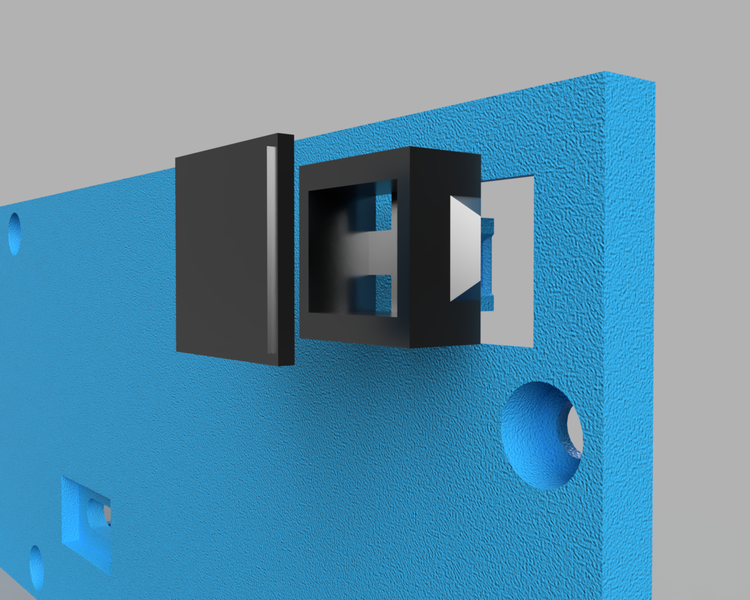
My favorite part of the case is the snap-fit housing for the tactile button. It allows for a small breadboard switch to become a neatly integrated button. Definitely a design I will use again in future projects: Exploded view of button

the final back button

As a final embellishment, I added the text SplashFlag to the top of the device. I only have a single-color 3D printer, so this meant printing the outline of the letters in blue, then the letters themselves (slightly smaller) in white. Final assembly involved super gluing them together on the top of the case.

What Isn't Included

As much as I packed this device with features, I didn't include everything.

If I wanted to devote more time to this project, I'd probably first enable TLS for all HTTP connections. The idea of writing code to automatically update the CA certs on the device (and maintaining TLS certs on the server app) over time didn't seem worth it for a hobby project.

Also, secrets like the WiFi password and MQTT credentials are not encrypted at rest. They are stored in the ESP32-S3 Nano's non-volatile memory, allowing anyone with physical access to the device to potentially retrieve them without too much effort. The ESP32-S3 Nano does have eFuses which can help with storing cryptographic keys (which could then be used to encrypt the credentials), but adding that capability didn't make the cut due to time constraints.

Conclusion

Who knows if I will use it, but this build taught me I am capable of making steady, regular progress towards long-term projects.

I am probably not going to large scale manufacture these for the neighborhood, but I gained confidence in building a complete hardware device on my own that works well. When the next product idea strikes, I'll already have a lot of the knowledge (and code!) required for building it.

Is it perfect? No. Is it better than some IoT devices I've purchased, with easier updates and repairs? Definitely.

How to Build Your Own SplashFlag

Parts List

  • ESP32-S3 Nano
  • 1602 LCD Display with I2C adapter for easier wiring
  • Feetech FS90 9g Servo
  • 6x6x5mm tactile push button switch
  • .1 uF decoupling capacitor
  • 220ohm pull-down resistor
  • USB-C Power Adapter and cable
  • Variety of M1.6-M2.5 screws and bolts to mount all the components

Code and Files

Complete code for the ESP32-S3 Nano and web app, as well as the 3D printed case are available at the SplashFlag GitHub Repo.

The code for the ESP32-S3 Nano is configured with PlatformIO. This configuration handles downloading and installing all C++ dependencies. If you use PlatformIO in Visual Studio Code like I do, you can open the repo's hardware folder, build the code, and upload it to the board.

The web app runs in a Docker container. You will need to generate an auth password for the mosquitto service as well as configure a Cloudflare Tunnel if you are going to be self hosting. Details for doing this are in SplashFlag backend README.

Case Assembly and Wiring

3D printing the files shouldn't require any supports, with the exception of the cutout for the USB-C cable. I used .10mm layer heights with PLA+ filaments. The snap-fit tactile button is the component with the tightest dimensional tolerance - I recommend slicing up the back panel and printing only this button enclosure at first to ensure your printer is calibrated correctly. If that piece prints correctly, the rest of the case should print without any issues.

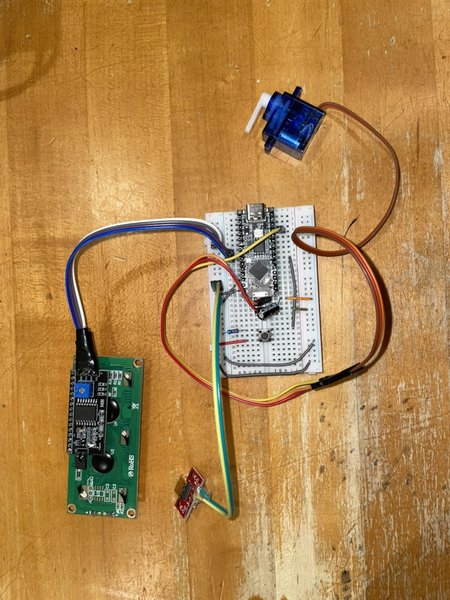
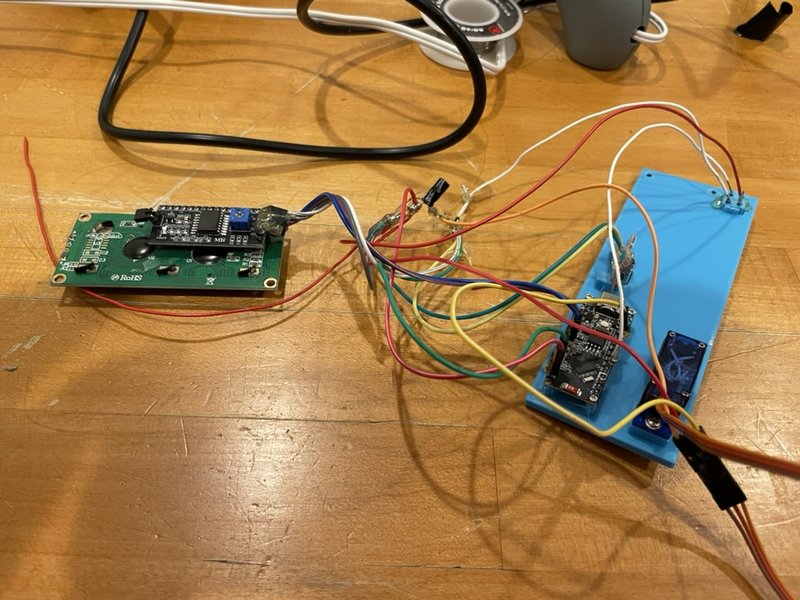
I don't have a nice wiring schematic, but the photo below with details should help.
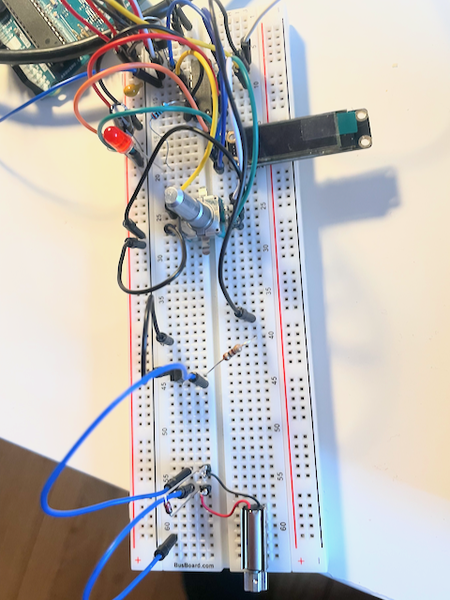
- The I2C adapter is wired to pins A4 and A5. - The servo is wired to D9 as well as 5V and ground. I put the decoupling capacitor near the servo to ensure smooth power. - The USB-C adapter gets the stable power in, and it is tied to the VIN and ground pins on the ESP32-S3 Nano. - The tactile button is tied to ground with the pull-down resistor and wired to D4 on the ESP32-S3 Nano. Components wired together via a breadboard

After confirming everything worked on a breadboard, I mounted the components to the case. I then soldered the component wires together, tested again, and once I was confident things still worked, encased all connections in hot glue: Wires all hooked up internally for the case

Note: the red wire hanging off to the left in the above photo was an extra wire I later clipped off - I miscounted while creating my wires.

Maybe my next project will involve designing a custom PCB board to make the wiring easier.

Talkie - a simple, private, responsive interface for LLMs

Watch this video on YouTube

I like using ChatGPT. But I don't like the $20/month price tag for using OpenAI's app, especially given the API costs fractions of a cent.

So what did I do? I created my own ChatGPT-like app, of course!

Talkie, a ChatGPT Clone

talkie.dev app icon

Plenty of free apps exist for interfacing with OpenAI's model APIs, but after trying a dozen of them, I couldn't find one that met my needs. Specifically, I wanted something that would:

  • Generate text and images.
  • Have light and dark modes that respect my device settings.
  • Simple to use. No clutter from features I don't care about.
  • One app that works the same across all my devices.
  • No logins required.
  • Data stays in my browser only. The only data transmitted should go straight to the OpenAI APIs. I don't need a middleman logging all my chats for who knows what purpose.

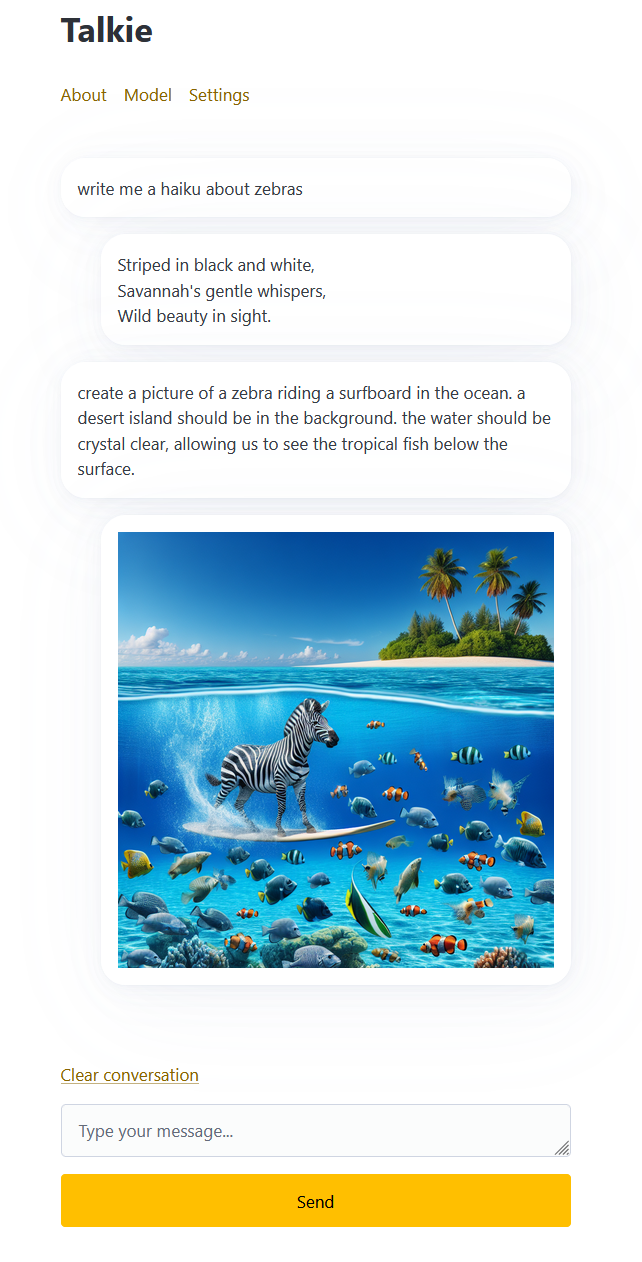
It took me a few weeks to brush off the rust on my vanilla JavaScript skills and get things coded, but I was able to create exactly what I wanted:

Screenshot of the Talkie app generating text and images

Developing Talkie

If you don't care about how I developed the app and just want to use it, go straight to the Using Talkie section.

Building the app was straightforward. My goals were to add the features I wanted, keep the user interface simple so my family members and friends would enjoy using it, and keep the code easy to understand so I could easily update it in the future.

The main app is under 500 lines of uncompressed vanilla JavaScript code. You can check it out on GitHub. I tried to use ChatGPT to write some of this code, but I quickly discovered that GPT-4 (the model I used at time of development) was never trained on any OpenAI API documentation or examples. It makes sense in hindsight, but I found that ironically funny at the time.

I ended up using Pico css to help with the app's design. I hate writing CSS, so Pico was a nice way to build a minimalist, responsive website with little effort. The library is lightweight and doesn't include every feature under the sun (as opposed to something like Bootstrap), which was nice because it forced me to simplify the design. Pico also respects a device's light/dark mode out of the box, which is a nice added bonus.

I also used Showdown, a Markdown to HTML converter. OpenAI's API responses return Markdown-formatted text that I needed to convert to HTML. At first, I thought I could get away with doing my own minimal custom Markdown formatting but I quickly realized there are a lot of edge cases that a full library would handle better.

That's about it. The app probably has bugs and isn't perfect, but it meets my needs, and I hope others will find it useful too. Talkie's source code is MIT-licensed and available on GitHub.

Using Talkie

Talkie is available as a progressive web app, meaning it will work on your computer, phone, and everything in between. It's available at:

https://talkie.dev

To start using it, you will need an OpenAI API key. To get an OpenAI key, regsiter for an OpenAI account or sign in to your OpenAI account, then generate a new secret key from the API key page. Paste that key into Talkie, and you'll be good to go (remember: Talkie only saves your API key to your browser's local storage - it never leaves your device!).

That's it. Type in some prompts, generate images and have fun with the same simple, privacy-focused experience on all your devices.

Crosstream - Efficient Cross-Server Joins on Slow Networks in Python

Earlier this year I presented at PyCon 2023 in Salt Lake City, UT on the topic of "Efficient Cross-Server Data Joins on Slow Networks with Python". You can watch the presentation on YouTube:

Watch this presentation on PyCon's YouTube channel.

Slides from the session can be found https://github.com/bertwagner/Presentations/tree/master/crosstream.

The crosstream Python package mentioned can be found at: https://github.com/bertwagner/crosstream.

jurn - A Command Line Tool for Keeping Track of Your Work

Watch this week's video on YouTube

How do you keep track of your daily work accomplishments?

If you are like me, you wait until the end of the week and then dread having to think back all the way to Monday to try and remember what you did that week. By that point all I usually remember is what I ate for breakfast that morning and the immediate problem I was working on before doing my weekly writeup.

I wanted to get in the habit of better documenting my work accomplishments, so I built jurn, a command line tool to help tag and log work as you do it. It has made tracking my work easier, making it simple to share progress in stand-up meetings and invaluable for end of the year performance evaluations.

In this post I will show you its most important features and how I use it.

Install

jurn is a command line tool I wrote in Python. To install, you just need to run pip install jurn. You can also modify and build from the source code hosted on GitHub.

jurn stores its data in a local sqlite database, meaning no one else ever sees your data and you can query the data yourself if you have other needs for it that jurn doesn't currently support.

Logging

Whenever I want to log an accomplishment throughout the day, I simply use the jurn log command to save it:

jurn log -m 'Wrangled cats via lasso.'

If I want to add some organizational structure to my notes, I can also include tags:

jurn log -m 'Wrangled cats via lasso.' -t 'Physical Fitness'

jurn also comes built in with tab complete functionality for tags, so if you type in:

jurn log -m 'Wrangled cats via lasso.' -t 'Physical <TAB>

jurn will get a distinct list of your previously used tags from the database, helping you pick the right one to autocomplete with:

Physical Fitness
Physical Security

The tagging system also allows for subcategories denoted by the # sign, allowing for even more organization:

jurn log -m 'Wrangled cats via lasso.' -t 'Physical Fitness#Cardio'

NOTE: To enable autocompletion, you must add this to your ~/.bashrc:

eval "$(_JURN_COMPLETE=bash_source jurn)" If using other shells, please reference the Click documentation for the specific line you need to add.

Viewing Entries

Once it's time to reflect on what you did for a particular day (or week, month, year, etc..), you use the jurn print command to get a pretty printed version of your log entries:

jurn print -d week
2022-11-01 to 2022-11-07
  • Physical Fitness
    • Cardio
      • Wrangled cats via lasso.
    • Strength
      • New PR benching 2 mules.
  • Physical Security
    • Installed new locks on the doors.
    • Added storage to camera recording devices.

Now you can easily share with your self/boss/team what you worked on. Come performance evaluation season, you'll also have a nice reminder of what you did all year that justifies your raise or promotion.

Automation

While running the jurn command whenever I finish a note-worthy task is quick and easy, I don't trust myself to always remember to do it.

Instead, I add a line like:

jurn --early-end 60 log -t

to my ~/.bashrc in order to have jurn remind me to log any accomplishments every time I open a new terminal tab/window (which I do all day long).

To prevent it from being too annoying, I pass in the ---early-end option so it knows not to prompt me for my updates if I have already written one in the past 60 minutes.

...And More

I built jurn to fulfill the needs I had with keeping track of my work accomplishments. All of the tool's various options can be found by running jurn --help or viewing jurn's documentation.

If you've read this far, I assume you value keeping track of your daily work progress and I hope you can use jurn to make that process a little bit easier.